

Features
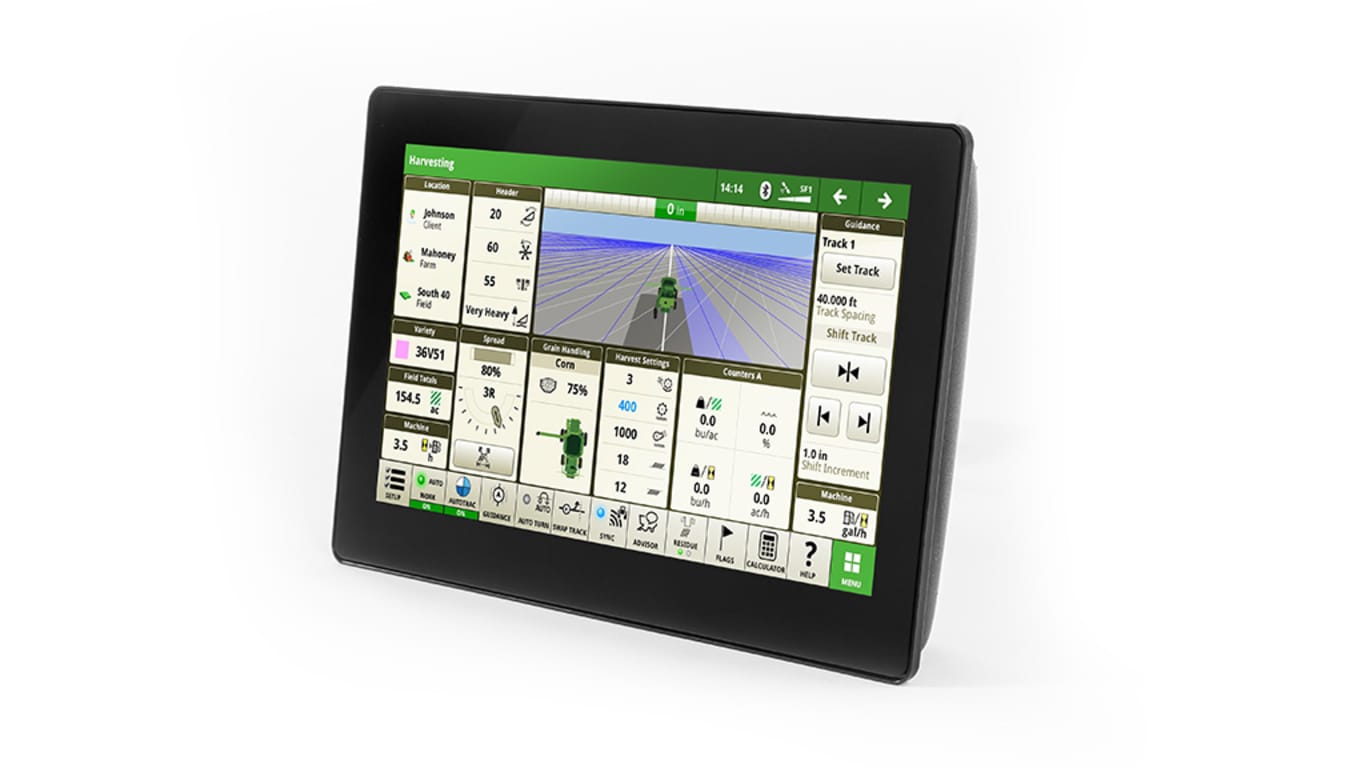
The G5 display replaces the 4240 Universal display and uses a larger 10.1 in. (25.65 cm), 1080p HD, capacitive touchscreen and can grow into a fully capable, movable precision ag display. Tied with a StarFire™ Position receiver, the G5 Universal display provides the power needed to perform all of John Deere’s precision ag features. The G5 display includes the following:
The G5 Universal Display ships from the factory with precision ag features included with the display and machine purchase. so that you can easily take the first steps on your precision ag journey:
G5 CommandCenter also has the option from the factory to add AutoTrac™, Section Control, and AutoTrac RowSense™. These will stay permanent with the display.
The G5/G5Plus display was designed to provide a consistent user experience by providing full screen viewing of more run page modules, shortcut keys, and precision agriculture capabilities.
Expect easier setup, along with increased operator confidence thanks to a simple, customizable interface. The improved design of the G5/G5Plus display also aids in an optimal operating experience and maximizes uptime.
In order to increase your efficiency, take advantage of the following features offered by the G5/G5Plus display:
Satellite Maps introduces a Google background layer to the display, enhancing visibility and enriching the mapping experience for customers. This additional context provides imagery of the physical location of the machine, enabling a more informed and improved farming experience. Satellite Maps is enabled with a G5 Advanced license and 25.1 software release or newer.
This feature will enable customers to:
We are simplifying the process of displaying two primary map layers side by side on the G5 display. Customers no longer need to struggle with aligning two different map modules perfectly. By placing two maps next to each other, we provide significant value through enhanced visibility, improved comparison capabilities, and better decision-making support for farmers.
With the pan and zoom feature, customers can navigate using their fingers, just as they do on their consumer devices. This user-friendly approach offers a more intuitive and interactive experience. Users can easily explore the map using natural hand movements such as swiping, pinching, and tapping. This method enhances user engagement and efficiency by facilitating smooth and dynamic interactions with the map. Additionally, it allows users to zoom in and out, pan across the map, and interact with specific points of interest, making the exploration process more enjoyable and accessible.
|
Overhead |
Perspective (rear view) |
Zoom Out: Pinch |
X |
X |
Zoom Out: Single Tap with Two Fingers |
X |
X |
Zoom In: Pinch |
X |
X |
Zoom In: Double Tap with One Finger |
X |
X |
Swiping: Sideways |
X |
|
Swiping: Forward/Backward |
X |
X |
Users can easily diagnose row issues by understanding the direction of previous passes. Additionally, when multiple vehicles are operating in the same field, operators can view each pass, facilitating better planning throughout the field.
Remote Display Access (RDA) and Remote Display Control (RDC) are powerful tools designed to enhance visibility and control of machine displays from virtually anywhere.
With RDC and RDA users can:
Note that RDC is not meant for adjusting machine motion. Currently, only G5 Universal displays on 25.3 software without platform applications installed support RDC sessions. Displays with platform apps, like CommandCenter displays, are not compatible currently. If a display supports RDC, the RDC toggle will appear in the Remote Display Access window after starting a session.
Here are the steps to enable RDC on a capable display:
Easily switch between languages with the option to set the active and alternate language. Configure the shortcut bar to include the language toggle allows different individuals to easily switch the display between languages.
Reduce damage to machines by flagging obstacles in the field such as tile inlets, posts, rocks, or other landmarks. Mark areas of the field with point, line, polyline, or rectangle area flags for follow up at a later time or for reference while operating equipment. A few examples are tile blow outs, weedy areas, rocks, and wet spots. Users can also flag guidance tracks and boundaries that require updates. Name each flag to strengthen overall awareness of flag instances in the field. Flags recorded on the display or created in Operations Center can be transferred between displays using Setup Files, Work Plans, or Data Sync Setup.
Users and access allow the owner or manager to lock out certain functions to prevent operators from accessing or changing settings. Lock-out functions are managed with a defined pin for the administrator.
The G5 CommandCenter can be set to one of two profiles, administrator, or operator. The administrator profile is always set to the full access group. This group allows unlimited access to all the features and can lock and unlock features in the operator profile.
Stay up to date on the latest displays, features, and enhancements with the Displays Operator’s Manual at the user’s fingertips. With each bundle update, the display automatically receives the latest Displays Operator’s Manual which means less time locating a paper copy and ensuring the most up-to-date information is always available.
The video application on G5 displays has been redesigned to improve user interface and prepare for future enhancements. Features include the ability to name and configure cameras for viewing and scanning.
Machine users can experience visual and audible tones when a flag intersects the current path of travel for a machine or implement. The display will notify the operator in the cab 20 seconds before approaching the flag and again 10 seconds prior. This applies when moving in forward and reverse. Flag Alerts are available on Gen 4 and G5 displays with 25.2 or newer Gen OS software. Setup must be completed in Operations Center.
NOTE: Vehicle applications are always located on the G5 CommandCenter.
G5 applications with renewable license allow data to be transferred from the display to the John Deere Operations Center for job reporting and analysis using Wireless Data Transfer (WDT) or Data Sync.
Wirelessly sending data helps you save time and money while increasing productivity. Wirelessly transfer setup, prescription, and documentation files securely between office, mobile devices, eliminating the need for USB transfer. This increases your uptime and productivity, reduces the risk of data loss, and enables easy data sharing and more timely decision making.
Through the John Deere Operations Center, you are in control and can easily share files with a John Deere dealer and other trusted advisers.
NOTE: For users in areas of poor cellular coverage, data can be exported using a USB flash drive.
Documentation of implement-based field operations remains important regardless of controller brand. G5Plus CommandCenter™ and Universal Displays and Gen 4 4600 CommandCenter and 4640 Universal Displays can communicate with select third-party controllers and third-party global positioning systems (GPS). Collectively, the system supplies the operator with instantaneous data while viewing the display. This information can be viewed in the John Deere Operations Center software for further analysis and reporting.
Third-party RS232 GPS compatibility enables documentation and Section Control on the G5 and G5Plus CommandCenter™ or Universal Display, 4600 CommandCenter and 4640 Universal Display; AutoTrac™ automated steering functionality is not compatible with third-party RS232 GPS.
When using a Raven controller, the G5 and Gen 4 displays can run in conjunction with map-based prescriptions.
Collected data may include:
Compatible controllers:
Compatible sensors
Compatible GPS:
Required components:
SCS 440, SCS 450, and SCS 660M are trademarks of Raven Industries, Inc. Trimble and GreenSeeker are trademarks of Trimble, Inc.
Over-the-air reprogramming allows for fast, simple, and convenient updates that offer improved performance and new features when producer’s need them, when they want them, and when they are ready for them.
You have the power to reprogram John Deere Precision Ag component connected to your vehicle, over the air, without the need for a USB stick or separate download program:
*NOTE: Other Precision Ag Technology displays (such as the Original GreenStar Display, GreenStar 2 1800, GreenStar 2 2600, and GreenStar 3 2630) cannot be reprogrammed by G5 or Gen 4 displays. Modular Telematics Gateway and non-Precision Ag Technology components, such as the tractor radio, are not updateable by the G5 display.
Mac is a trademark of Apple Inc.
Quick Equipment Search
Equipment Filter