
Features
Data Sync Setup eliminates time spent creating and transferring setup files between John Deere Operations Center™ and the latest John Deere Displays while consistently providing the right setup information where it’s needed, and at the right time. Data Sync Setup shifts your operation from a localized manual data management process to a shared centralized list that updates in near real time as data is created, modified, or removed.
With Data Sync Setup, you can:
Data compatible to sync:
Initial enrollment in Data Sync Setup takes place in Operations Center™ Web. Click on the Setup dropdown menu and select Data Sync to get started. There are four steps to fully complete the set up and begin initial sync.
Access Data Sync to continue management of automatic syncing. Review the list of enrolled displays, ensuring that software is up to date and adjusting the list to add or remove any displays as needed. Look through the items that are syncing to understand any potential for data cleanup in order to get the most out of this tool. Adjust import options to appropriately make setup data available or archived as it syncs into Operations Center and out to the enabled fleet. Check to see if additional setup information has become compatible to sync through Data Sync Setup and opt-in to begin syncing (example: Implements).
Gain access to setup data on desired displays without spending time manually creating and sending files between Operations Center and the fleet. Feel confident that the setup information present will enable operators to select from a provided list, alleviating the need for manual entry and potential errors.
Use the Status Center on the display to enable sync to Operations Center after initial enrollment has been completed and review sync status. This provides a quick confirmation that data is syncing. Leverage File Manager for additional details, outlining last sync time and when individual entity types were received. Build confidence by reviewing the Transaction Log to see a further breakdown of sync status at the individual setup item level. These screens help ensure Data Sync Setup is working as desired and that operators have access to one desired setup list for them to select from with ease, getting to work quicker.
In order to further protect setup information, the user can customize import options in Operations Center as well as establish a security PIN through the display. Some operators may not be as familiar with the operation or integrated with the desired setup management process. This can make it challenging to trust in giving control of the one centralized setup list. Both Operations Center and Gen 4/G5 Displays feature operator mistake proofing settings to provide more stability to correctly sync the data list and prevent unwanted changes from happening.
NOTE: In Operations Center - Establishing Import Options to Archive will ensure that any setup information in that category will sync from enrolled displays to Operations Center Archive and can be made available if later determined needed for work. Any data coming from the display, not recognized in Operations Center will be saved as a backup in the ‘Archived’ section. This helps to prevent any duplicates created with associations to similar setup data appearing on machines. This can commonly lead to (~) (1) associated to the listed name in the drop-down selection.
On the display - Users and Access provides a localized lockout by machine from creating, editing, and modifying data. Only administrators through the use of a key code can make data changes.
Syncing active setup information from John Deere Operations Center to Data Sync Setup-enabled displays removes manual entry that can cause duplicate or incorrect information to be created throughout the season. Increase confidence in work data collected during tillage, application, planting, and harvest by leveraging one common setup list when planning and starting work. This will help ensure that documentation data will be accurate for analysis and remote management. Having accurate implements, fields, products, tank mixes, and operators drives the intended results for field operation and the ability to make more educated decisions using Operations Center Analyze tools.
Less chance of duplication and spelling errors. By automating the steps to share setup data and working from one aligned setup list, a farming operation can improve their ability to select the correct data and save time getting set up in the field.
Accurate implement profiles are essential for the success of many precision technology solutions – AutoPath™, AutoTrac™ Turn Automation, Section Control, work documentation, or even boundary recording. The accuracy of technology relies on exact equipment measurements to refine the work being completed or overall performance can suffer. Using Data Sync Setup to seamlessly sync implement information and characteristics ensures that the same up to date profile exists on enabled displays and within Operations Center. Edits made will also sync, keeping the information aligned following the import options established by the organization.
Syncing implements will alleviate the need to create implement profiles multiple times across different machines that use the same implement during the year. It also reduces the risk of entering a mistaken measurement when moving machine to machine. Leverage data cleanup tools available in Operations Center Equipment to Merge, Archive, Filter, and Manage Columns to ensure the information remains accurate and up to date as it syncs to the fleet.
Guidance lines created in one operation are often needed by the next in a short time window. Data Sync Setup removes steps required to manually send guidance lines to the fleet. Gain access to straight tracks, curve tracks, and circle tracks in near real time after the guidance line has been created.
Add flags for specific areas, points, or lines in season, knowing that operators will remain notified about what to pay special attention to or avoid. Add any notes on the go tied to additional field work needed for that flag such as repairing a damaged tile lines or pre-season cleanup. New flags, edits to existing flags, or even deletions of flags will sync to and from Operations Center and other Data Sync Setup enabled displays in near real time.
Add a variety in season that may not have been planned for or was not originally made available at the beginning of the season. Make it available and feel confident knowing the other machines will also have that variety in their drop-down list for use and available for accurate data recording.
Make product or tank mix adjustments on the fly, ensuring that those changes are updated across all Data Sync Setup enabled displays in the organization. One shared setup list available for all within a connected organization and reflected in Operations Center.
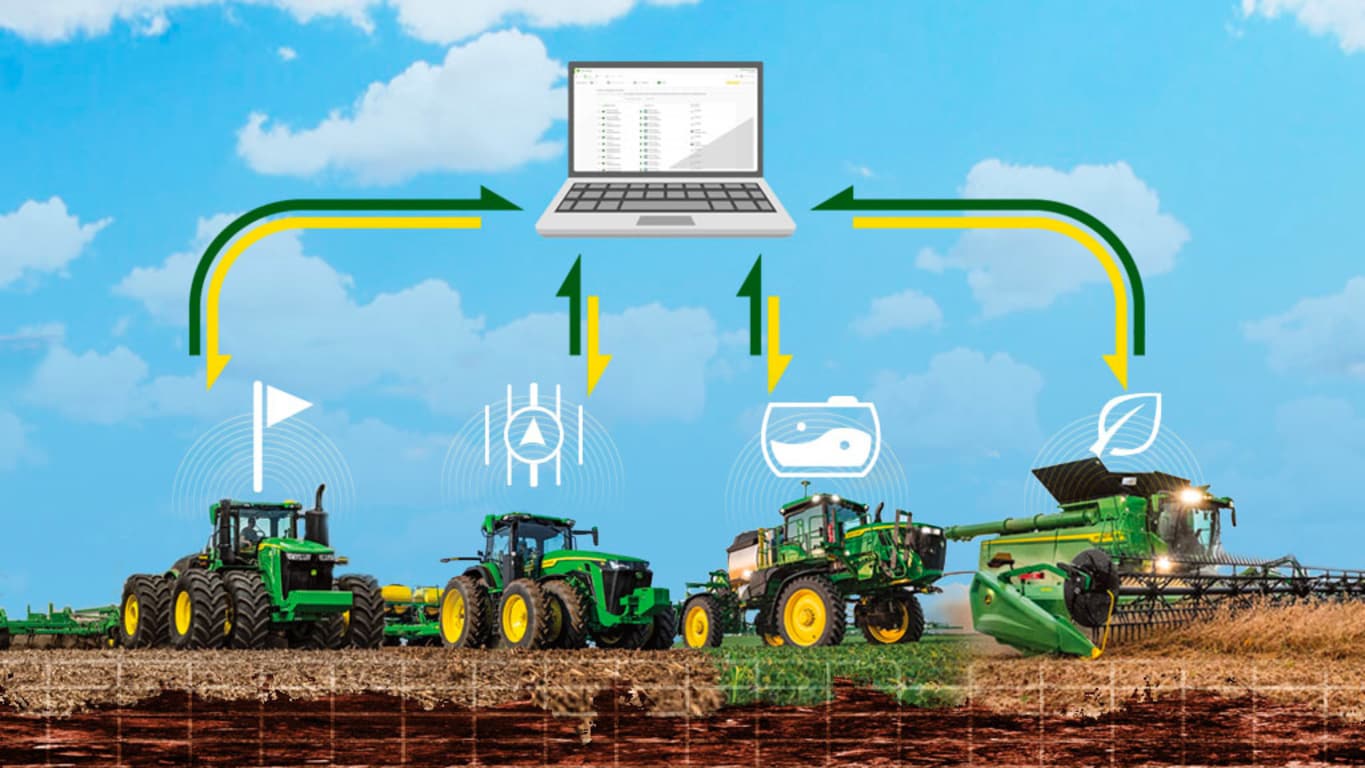
Gen 4 and G5 Displays send work data from the display to Operations Center every 30 seconds eliminating the need for manually exporting data. By taking out the manual step, users can work in the field with confidence their data is automatically sent and available in Operations Center. Work data is then processed for analysis use and made available in both web and mobile platforms. Sending work data automatically is made available with a JDLink™ connection and an established Operations Center organization. Sending work data automatically with Data Sync can be triggered on within the display.
Quick Equipment Search
Equipment Filter